
Sync across devices and share with your team
Paid features on this page: iCloud Sync (Starter), Linked Folders (Starter), Encrypted Export (Starter), Team Catalog (Team) and Team Library (Team). Everything else here is free.
iCloud Sync
iCloud Sync: Starter plan
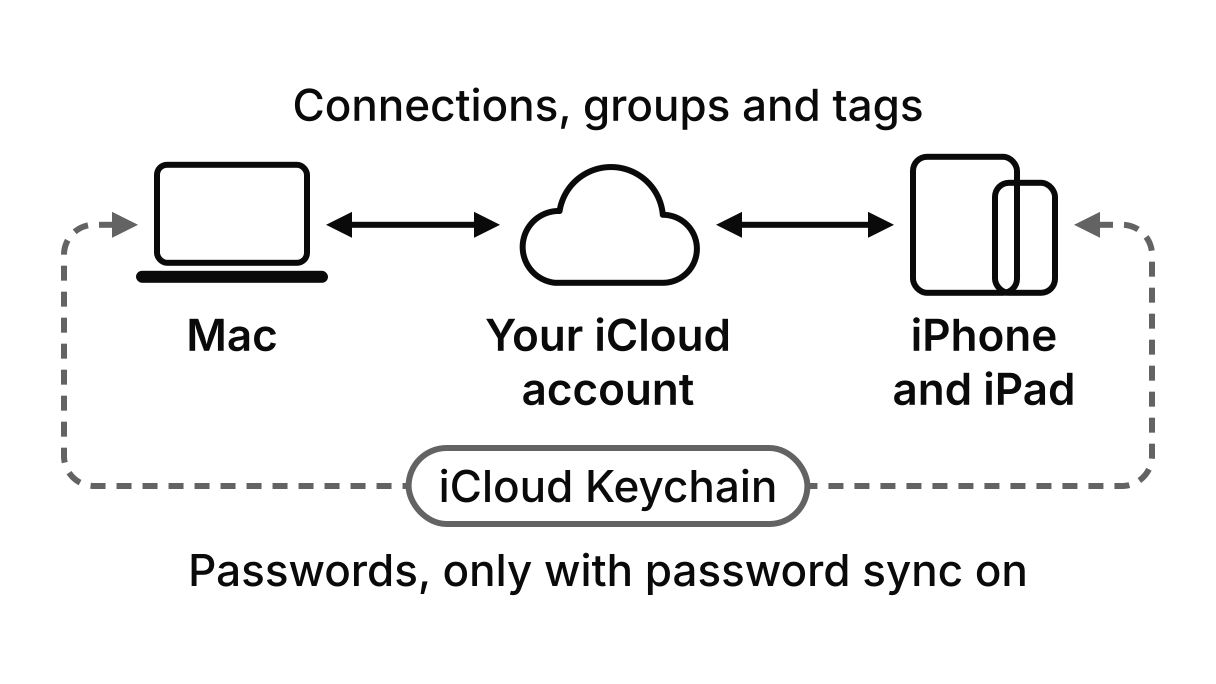
iCloud Sync keeps your library the same on every Mac, iPhone and iPad signed in to your iCloud account. The records go to a private database in that account, and sync stays off until you turn it on, on each device. On iPhone and iPad it is free; the Mac needs a plan that includes it.
Passwords sync only if you also turn on Passwords under Sync Categories on the Mac, or Sync Passwords on iPhone and iPad, which goes through iCloud Keychain; on the Mac it also carries the other secrets TablePro keeps in the Keychain, such as AI provider keys and the license key. Mark a connection Local only to keep it, with its favorites and saved queries, on one Mac.
- On the Mac you choose what syncs: connections, groups and tags, settings, SSH profiles, table and database favorites, saved queries with their SQL, and table folders.
- On iPhone and iPad: connections, groups and tags.
- A synced connection carries its host, port, username, database, SSH and SSL settings, startup commands, pre-connect script and AI rules.
- Never synced: query history, Data Rewind, password sources, tunnel commands and each connection’s External Clients level.
Handoff
iCloud Sync: Starter plan
Open a connection or a table in TablePro on your iPhone or iPad and your Mac offers it in the Dock, and the other way round. Handoff reopens the same saved connection, so it has to be on both devices: iCloud Sync puts it there, while a copy imported from a file counts as a different connection. Handoff passes the connection’s ID and the open table’s name between your devices, through Apple. With no table open, it passes the connection’s name instead, or its host when it has no name.
Linked Folders
Linked Folders: Starter plan
Add a folder, such as a Git checkout or a shared drive, and TablePro lists every .tablepro file in it as a connection, updating the list as files are added or changed. Linked connections are read-only in TablePro: you change one by changing its file. Encrypted files are skipped, so a shared folder holds settings, not passwords, and the startup commands and tunnel command in a linked file are ignored.
Linked Folders watch connection files. Linked SQL folders, a free part of saved queries, are a different feature that keeps a folder of .sql files in step with your saved queries.
Team Catalog and Team Library
Two ways to give everyone on a Team license the same connections: one through a folder you already share, one through TablePro’s server.
Team Catalog
Team Catalog: Team plan
Share > Publish to Team Catalog… writes the connections you pick, without passwords, as .tablepro files into a shared folder. Teammates add that folder as a Linked Folder, so the catalog travels through a shared drive or a repository you already have, not through TablePro.
Team Library
Team Library: Team plan
Share > Publish to Team Library… on a connection, and Publish Saved Queries to Team… in the Favorites sidebar, upload connections and saved queries to TablePro’s server, and every Mac on the license downloads them; the queries appear in the Favorites sidebar with the name of whoever published them. It uploads connection settings and the SQL text of queries, never passwords, and a teammate’s Mac ignores the startup commands and tunnel command in what it receives, so nothing runs there on its own. Publishing again replaces what you published before.
Seats, invitations and your account
A Team license is priced per seat, and a seat is one activated Mac, not a person. You invite teammates from your account on the web; each receives a single-use code by email to enter in Settings > License on their Mac, and an invitation needs a free seat. The app shows who is on the team, but seats and invitations are managed on the web.
On an active monthly or yearly subscription you change the number of seats yourself; for a one-time purchase, contact support. Removing someone frees their seat at once and deletes what they published to the Team Library; their Macs lose the paid features at their next license check, within 7 days. The account page is for the person who bought the license.
On iPhone and iPad
The iPhone and iPad app syncs connections, groups and tags through iCloud, takes part in Handoff, and imports and exports .tablepro files, with passwords under a passphrase if you choose. Linked Folders, Team Catalog and Team Library are in the Mac app only.
Where it works
| Capability |
|---|
| iCloud SyncMac: Starter planiPhone and iPad: Connections, groups and tags, free |
| Password sync through iCloud KeychainMac: Starter planiPhone and iPad: Free |
| Choose what syncs and keep connections Local onlyMac: Starter planiPhone and iPad: Not available |
| Handoff, with iCloud Sync onMac: Starter planiPhone and iPad: Free |
| Export and import .tablepro filesMac: FreeiPhone and iPad: Free |
| Encrypted Export with passwordsMac: Starter planiPhone and iPad: Free |
| Linked FoldersMac: Starter planiPhone and iPad: Not available |
| Team CatalogMac: Team planiPhone and iPad: Not available |
| Team LibraryMac: Team planiPhone and iPad: Not available |
Limits worth knowing
- When a plan ends on the Mac, iCloud Sync pauses and says why, connections from Linked Folders and the Team Library disappear from the list, the Team publishing commands are hidden, and Encrypted Export loses its password option.
- Editing a synced connection on iPhone or iPad can change settings the app there does not have: a stricter Mac Safe Mode level, such as Safe Mode (Full), comes back as Alert, and SSH jump hosts may not survive the trip. Make changes to those connections on the Mac.
- If a Team license ends or is suspended, what was published to the Team Library stays on TablePro’s server until you ask for it to be deleted.
Get TablePro
macOS 13 Ventura or laterApple silicon or Intel


iPhone and iPadiOS and iPadOS 18 or later