TablePro 0.77 is out: 156 changes, 147 of them fixes.
The new work is a SAP HANA driver, folders in the sidebar, imports that remember where each column goes, and timeouts you set per connection. The largest groups of fixes are in imports and text encodings, iCloud sync, how edits are written back to SQL Server and Oracle, and etcd.
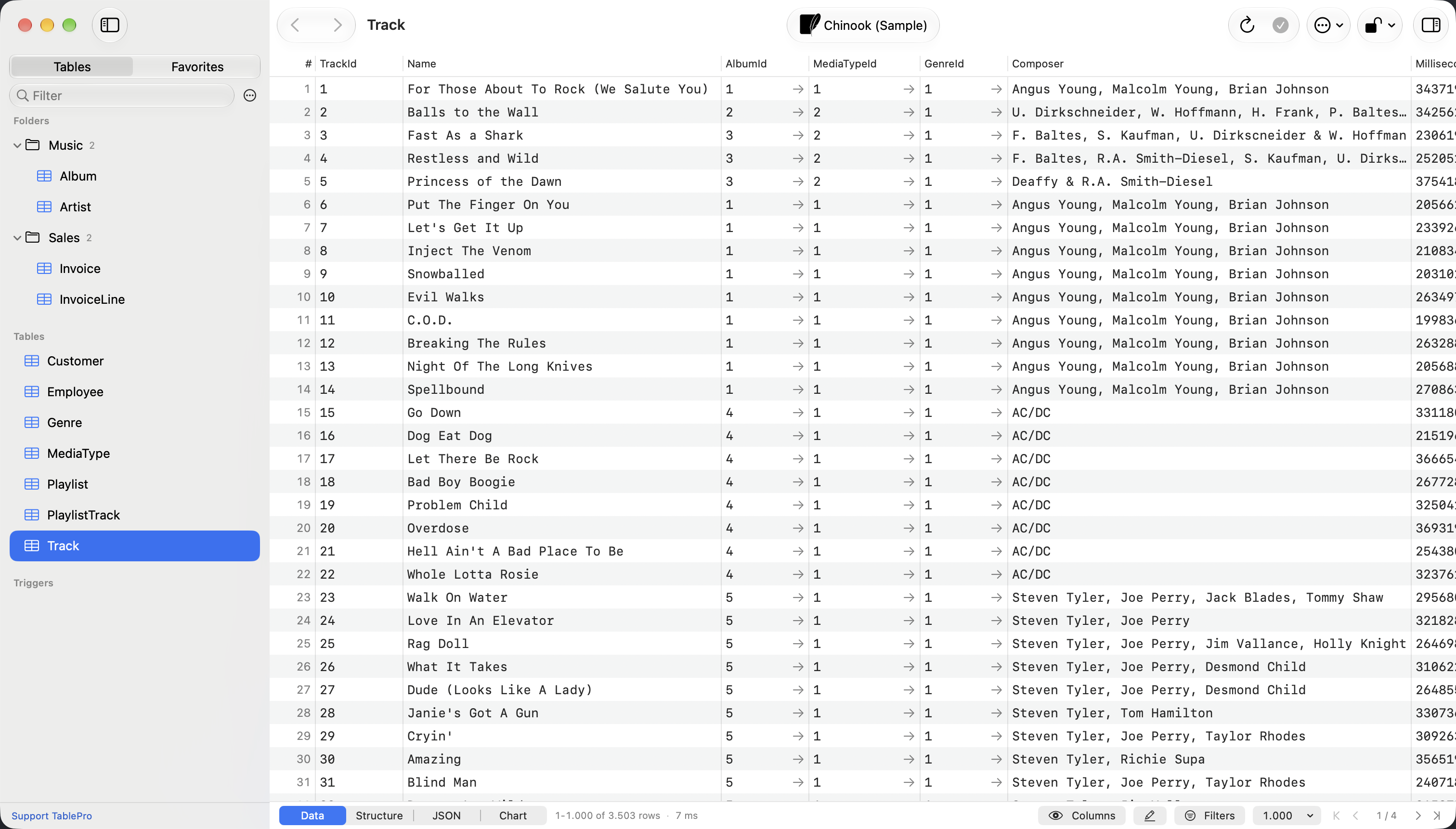
Folders in the sidebar
A schema with 200 tables is a long list to scroll. Right-click a table, choose Move to > New Folder, type a name and press Return. Drag more tables and views onto the folder, or pick it under Move to. A selection moves together.
A filed table leaves its Tables or Views section and sits in the folder. With View > Sidebar as List, the folders sit under Folders above Tables. With View > Sidebar as Tree, each database or schema lists its own folders. The filter field reaches inside them: a folder holding a match opens, and one without a match hides until you clear the field.
Folders exist in TablePro only, so filing a table changes nothing on the server. Rename or drop a table and its folder follows. Delete Folder puts its tables back in their sections, and Cmd+Z brings the folder back. With iCloud Sync on, your folders follow you to your other Macs. Sync needs a license, and both tiers include it.
SAP HANA
SAP HANA Cloud and on-premises HANA 2.0 connect, HANA Express included. Install SAP HANA Driver from Settings > Plugins, choose SAP HANA under New Connection…, and give it the SQL endpoint host, a user and a password. Port 443 and Verify Identity are the defaults, checked against the certificates your Mac already trusts, which is what HANA Cloud expects.
The driver runs SAP's open source go-hdb library in a helper process, so the SAP HANA client, ODBC and SQLDBC stay off your Mac. Sign-in uses HANA's SCRAM-PBKDF2-SHA256 exchange, and the password itself never crosses the network.
The schema picker switches schema on the same session, without reconnecting. Structure reads columns, keys, identity columns, indexes and foreign keys from the SYS catalog, and the DDL view rebuilds CREATE COLUMN TABLE or CREATE ROW TABLE with its indexes and comments. Query > Explain Query runs EXPLAIN PLAN and lists each operator with its estimated rows and cost. Stop cancels a running statement with ALTER SYSTEM CANCEL SESSION and keeps the connection open.
The driver is the work of @J2TeamNNL.
Imports that remember the mapping
Import the same CSV into the same table every week and you used to map its columns every week. Clicking Import now saves each choice that differs from the name match, for that table, whether the import succeeds or not. The next file into that table starts from those choices, and the sheet says Restored the mapping saved for and the table's name.
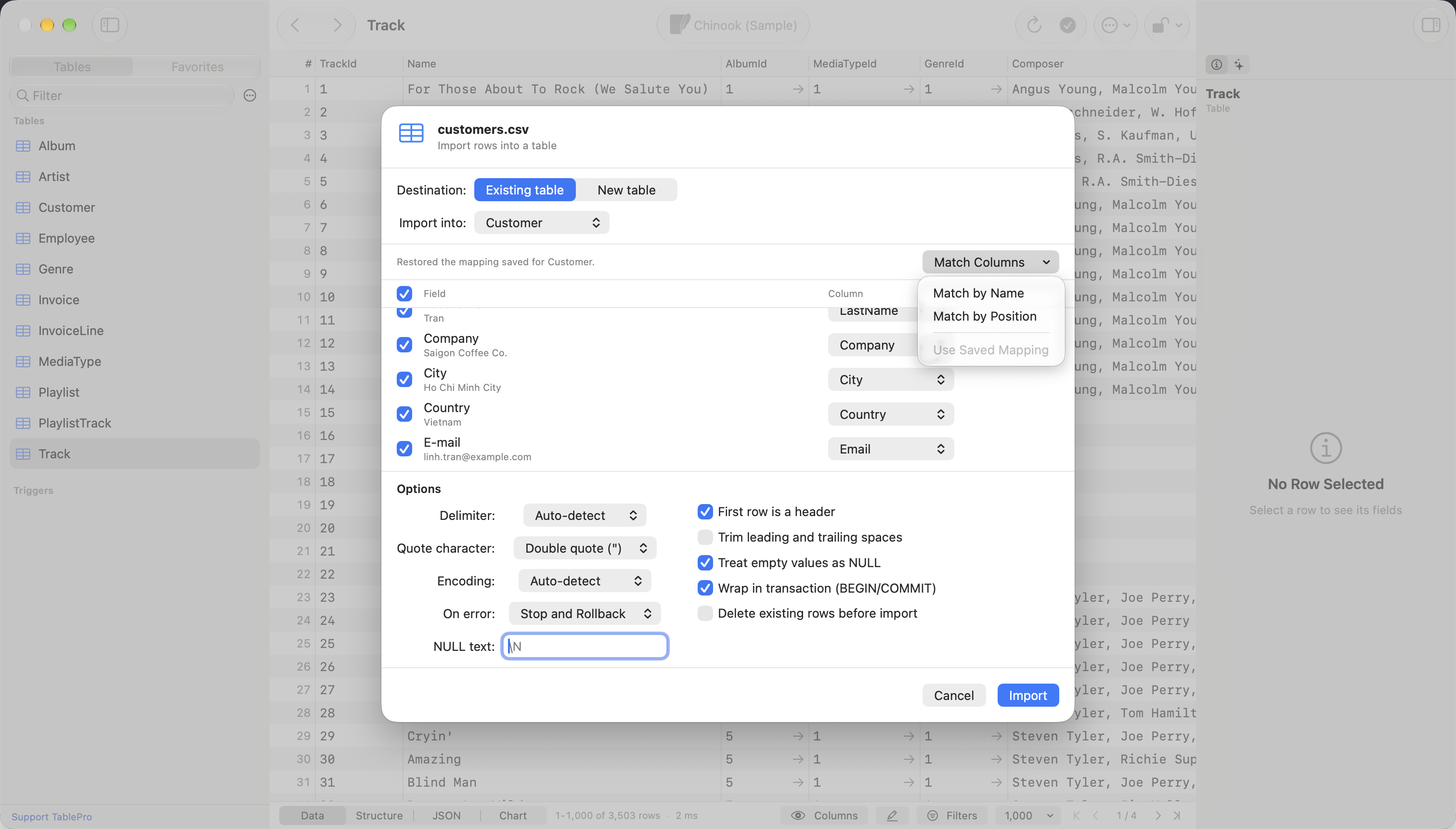
Match Columns above the field list fills every row at once. Match by Name maps each field to the column of the same name, ignoring case. Match by Position maps the first field to the first column, the second to the second, and so on. Use Saved Mapping brings the saved choices back after you change them. CSV, JSON and Excel imports all work this way.
Timeouts per connection
A connection's Options gains a Timeouts section with Connect timeout and Query timeout. The connect timeout is one deadline for the whole attempt: the SSH tunnel or proxy, TCP, TLS and the database sign-in. Leave it empty for 30 seconds, or set anything from 1 to 600. When an SSH bastion stalls, the error names the bastion instead of the database behind it.
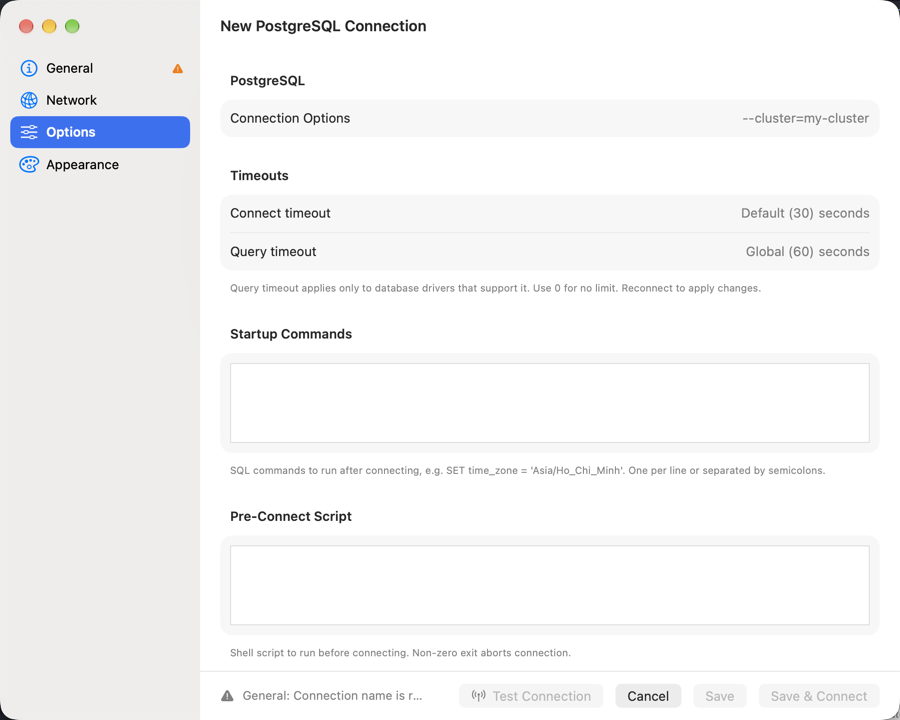
Query timeout overrides the one in Settings > General for this connection. Leave it empty to inherit, or enter 0 for no limit. Reconnect after changing either field so the open session picks it up.
Also new
- More encodings for CSV and SQL import: Shift JIS, EUC-JP, GB 18030, Big5, EUC-KR and UTF-16, so Japanese, Chinese and Korean text arrives as text instead of garbled characters
- The clipboard URL banner appears for every scheme Import from URL accepts,
+sshURLs included
Fixes worth knowing about
- Copy as UPDATE and Copy as INSERT wrote identity and computed columns, which SQL Server refuses with "Cannot update identity column", and matched a composite key on its first column only
- Identity and computed columns on SQL Server and Oracle, and SQL Server
rowversioncolumns, could be edited and were written on save, and Add Row failed on a table that had one - Table Transfer emptied a destination table and then failed when two source columns mapped to one column
- MongoDB, Elasticsearch, Typesense and SurrealDB could save a long array or object as the shortened text the grid displayed
- etcd Delete and Truncate on the
(root)row erased the whole Key Prefix Root - Explain Analyze ran write statements on Read-Only connections
- SSH, Cloudflare, SOCKS, Tunnel Command and Cloud SQL tunnels dropped the client certificate, so mutual TLS never worked through one
- A query tab opened with Open in Query Editor from Users & Roles was saved with the passwords in plain text, and TablePro links and connection exports carried the pre-connect script
What it will not do
SAP HANA connects directly or not at all: there is no SSH tunnel, SOCKS proxy or tunnel command for it. Forward a port yourself and put the server's name in TLS Server Name. On HANA, Structure saves nothing, every statement commits as it runs, and Compare & Sync is not available.
Folders sync between Macs only, and iPhone and iPad do not show them. Saved import mappings stay on the Mac that made them.
The query timeout reaches only the drivers that enforce one. Cassandra keeps its fixed 30 second request timeout whatever the field says.
Getting it
TablePro checks for updates on its own, or choose TablePro > Check for Updates…, or download it from tablepro.app. This update goes to everyone at once rather than over 36 hours, because of the fixes above.
Plugin ABI 34 adds to the API without breaking it, so installed plugins keep loading. Update your drivers from Settings > Plugins: every registry driver has a new build that honors the connect timeout, and etcd, SurrealDB and the document stores carry fixes of their own.